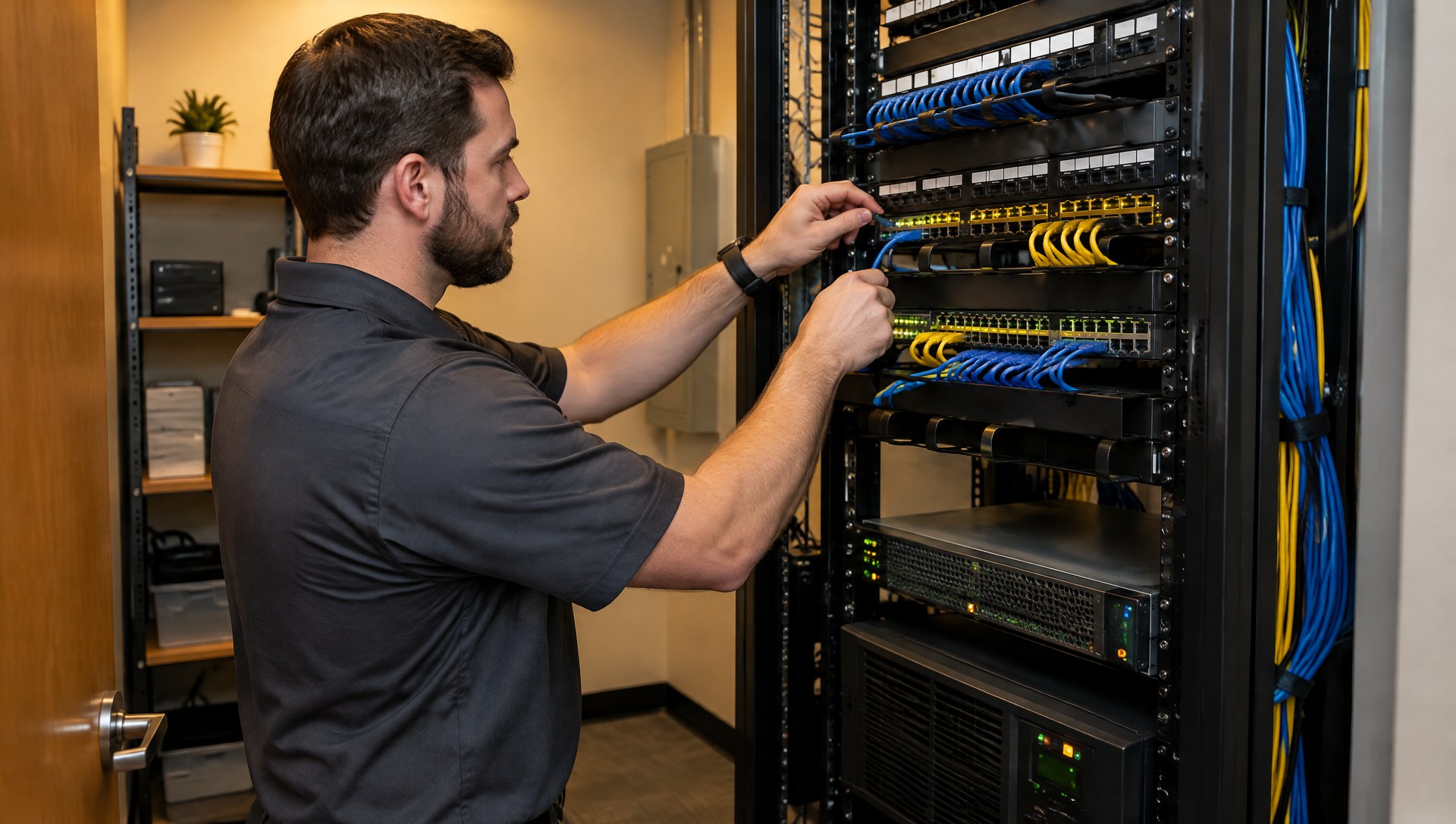
Short answer: Common planning targets are to replace laptops every 3 to 4 years, desktops every 4 to 5 years and servers about every 5 years, with network gear on a similar 5 year cycle. Those are planning targets, not hard limits. The real deadline is usually set by when the warranty ends, when the operating system stops getting security updates or when the machine starts costing more in lost time than a replacement would. A rolling refresh, replacing a share of machines each year, keeps the cost steady and avoids a crisis when everything gets old at once.
Nobody wants to replace computers that still turn on. But "it still works" is a low bar for equipment your staff uses all day and your business data depends on.
What are typical replacement cycles?
These ranges come from published IT lifecycle guidance used by schools, state governments and IT providers. They are a reasonable starting point for most small and mid-size businesses.
| Equipment | Typical cycle | Why |
|---|---|---|
| Laptops | 3 to 4 years | They travel, get dropped and wear out batteries, hinges and keyboards faster |
| Desktops | 4 to 5 years | Less physical wear; usually replaced when they get slow or fall out of support |
| Servers and storage | About 5 years | Tied to warranty length, parts availability and operating system support |
| Firewalls, switches and Wi-Fi access points | About 5 years | Security updates and support from the manufacturer eventually end |
For reference, the Consortium for School Networking suggests about 3 years for laptops and tablets and 5 years for servers, storage and network equipment. Minnesota's state IT agency replaces standard desktops and laptops every 5 years, and a Texas state budget brief cited a 4 year lifecycle for state PCs. Businesses with heavy users, like engineering, design or field staff, often land on the shorter end.
What are the warning signs a computer needs replacing?
Age is a guide. These signs usually matter more:
- It can't run the current version of Windows. Windows 10 reached end of support in October 2025, and computers that can't upgrade to Windows 11 no longer get regular security updates without a paid extended program. Our Windows 10 end of support guide covers the options.
- The warranty has run out and repairs now mean waiting on parts and paying out of pocket.
- Staff wait on it. Slow startups, frozen programs and long file opens add up across a whole office every day.
- It's having repeated problems. The same machine keeps generating help desk tickets for crashes, overheating or failing drives.
- The battery doesn't last a meeting on a laptop that's supposed to be mobile.
- New software doesn't support it, or a vendor tells you their next update needs newer hardware.
How do warranty and support timelines affect replacement?
There are two clocks running on every machine.
The hardware clock is the manufacturer's warranty. Business class laptops and desktops usually come with a few years of warranty, and many manufacturers sell extensions, often up to 5 years. Once the warranty ends, a failed motherboard or screen can cost a large share of a new machine's price.
The software clock is the operating system's support date. After it passes, Microsoft stops releasing security fixes, which is a risk to your data and can be a problem for cyber insurance and compliance. Within Windows 11, each yearly version of Pro is supported for 24 months and Enterprise and Education for 36 months, so machines need to keep taking feature updates. Hardware that can't take those updates is effectively at the end of its life.
Servers have their own deadlines. Windows Server 2016 reaches end of support on January 12, 2027. If your office still runs a server on it, that server needs a plan now, whether that's new hardware, a newer version of Windows Server or moving the workload to the cloud. Our business servers and server support pages cover both paths.
What does it really cost to keep old machines?
The purchase price is the only cost that shows up as one line on an invoice. Keeping old equipment costs money too, just spread out:
- Lost staff time waiting on slow machines, multiplied by every employee and every workday.
- Repairs and labor on equipment that's out of warranty.
- Downtime when a machine fails without warning, especially a server that everyone relies on.
- Security risk from machines that no longer receive updates.
- Rushed buying when something dies, which usually means paying more, taking what's in stock and setting it up in a hurry.
There's also the tax side. IRS depreciation tables place computers and peripheral equipment in a 5 year recovery class, and businesses may be able to deduct more in the first year through Section 179 or bonus depreciation. Your accountant can tell you what applies to you, but replacement often costs less after tax than the sticker price suggests.
How do I plan a rolling refresh?
A rolling refresh means replacing part of your fleet every year instead of everything at once. For a 4 year laptop cycle, that's about a quarter of your laptops each year. It works like this:
- Inventory everything. List each computer and server with its purchase date, warranty end date, Windows version and who uses it.
- Set your cycle by device type. For example, 4 years for laptops, 5 for desktops and 5 for servers.
- Rank by need, not just age. Replace the oldest machines and the ones your heaviest users rely on first.
- Budget the same amount each year. Divide the cost of replacing the fleet by your cycle length, and you have a predictable yearly number.
- Standardize models. Buying the same few business class models makes setup, support and spare parts simpler.
- Plan the handoff. Move data and settings, then securely wipe and recycle the old machines so business data doesn't leave the building.
- Review once a year. Check the inventory against support dates and adjust the plan.
Small offices sometimes put this off because the list feels overwhelming. A technology consulting session can turn it into a simple multi year plan.
FAQ
Is it cheaper to upgrade old computers instead of replacing them?
Sometimes. Adding memory or a solid state drive can give a 2 or 3 year old machine a useful boost. It doesn't fix an expired warranty or a computer that can't run a supported version of Windows.
How long should a business server last?
Most businesses plan on about 5 years, often lined up with the warranty. A server can run longer, but parts get harder to find and the operating system support date eventually forces the decision.
Should we buy consumer laptops to save money?
Business class machines usually cost more up front but come with longer warranty options, management features and more consistent models, which lowers support time over the life of the device.
What should we do with old computers?
Back up anything needed, securely wipe or destroy the drives and recycle the hardware through a responsible recycler. Don't hand off or donate a machine without wiping it.
Get a replacement plan
TechCore supplies and supports business computers and servers for companies in Smyrna, Nashville, Middle Tennessee and Chattanooga. Request a free IT assessment and we'll inventory your equipment, flag what's out of warranty or out of support and help you build a refresh plan with a steady yearly budget.